

Intro
If you’ve ever stood up a Google SecOps feed for Azure, you’ve copied something dangerous into a chat window. Maybe it was a 512-bit storage account key. Maybe it was a connection string starting with Endpoint=sb://. Either way: it was a long-lived credential, no IP binding, no expiry, and full rights against the resource it came from.
This post is a walkthrough for putting that credential behind a network door — applied at the Azure resource, populated from Google’s authoritative IP list, and structured so the feed keeps working while everything else on the public internet stops being able to touch the resource.
The credential still works — your feed keeps running — but the blast radius of a leak collapses to “an attacker with both the credential and a position inside Google’s address space.”
TL;DR — three moves. Turn on the Azure firewall on the Storage Account and/or Event Hub Namespace that backs the feed (deny by default). Allow-list Google’s published IP ranges from https://www.gstatic.com/ipranges/goog.json and set up a monthly refresh, because the file changes. Then tighten the credential itself — least-privilege SAS policies, Primary/Secondary key rotation, and where supported move to Entra ID auth so you can disable shared-key access entirely.
What A Feed Credential Actually Grants
By default, the credential you copy into Google SecOps when standing up an Azure feed has no IP binding, no expiry, and full rights against the resource that issued it. That’s the door we’re closing in this article. First, here’s why it matters.
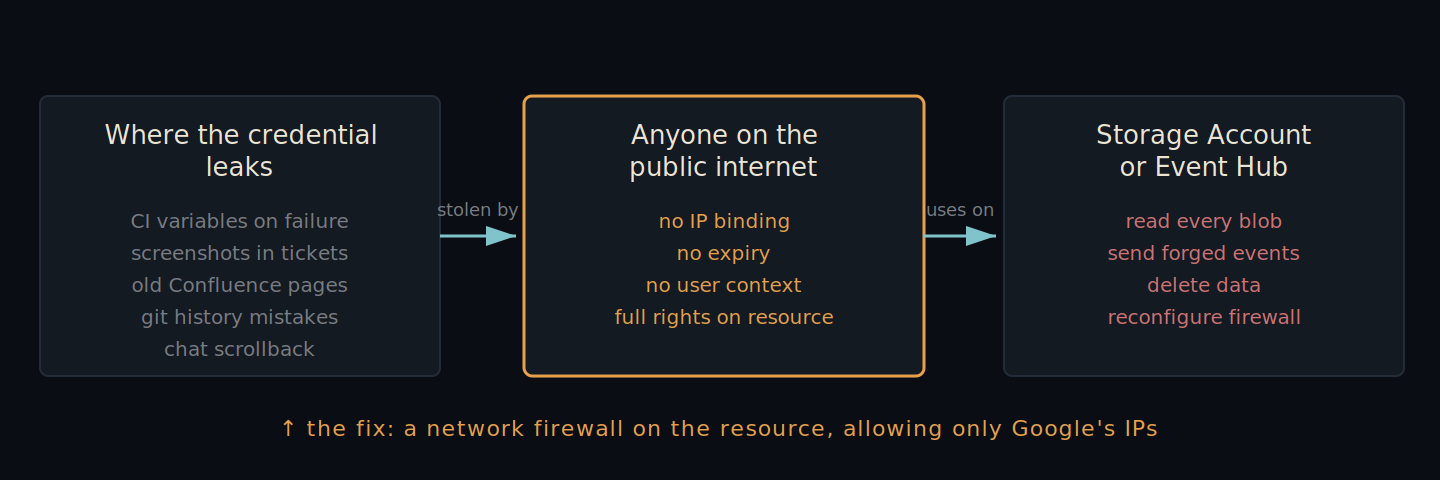
Both Azure ingestion paths into SecOps hand you a credential whose threat model is the same, even though the technical particulars differ.
| Attribute | Storage Account Key | Event Hub Connection String |
|---|---|---|
| What it is | A 512-bit Base64 shared key (Key 1 / Key 2) |
A SAS key inside a Shared Access Policy (often RootManageSharedAccessKey) |
| What holding it grants | Read, write, list, delete every blob in the account | Send, Listen, and Manage on every Event Hub in the namespace |
| Expiry | Never (until you rotate) | Never (until you rotate) |
| Bound to a user / tenant / IP? | No | No |
| Usable from | Any IP on the internet | Any IP on the internet |
If the credential ever lands somewhere it shouldn’t — a CI variable that’s logged on failure, an old Confluence page, a screenshot in a ticket — anyone who finds it can use it from anywhere, until you rotate. That’s the lifetime of risk you’re carrying with default settings.
Two Ingestion Paths, Two Resources To Harden
There are two patterns for getting Azure data into Google SecOps, and which one you’re on dictates what you’ll lock down.
Path A — Direct Storage. The source pushes blobs into Azure Storage; SecOps’ Storage Transfer Service pulls them. Only the storage account is in the path.
Path B — Direct Event Hub. Diagnostic Settings streams into an Event Hub Namespace; SecOps consumes events directly via the connection string. Only the namespace is in the path.
Some configurations combine them — Diagnostic Settings → Event Hub → Event Hub Capture → Blob Storage → SecOps STS. In that case both resources are exposed and both need the same treatment. There’s a dedicated section on that below.
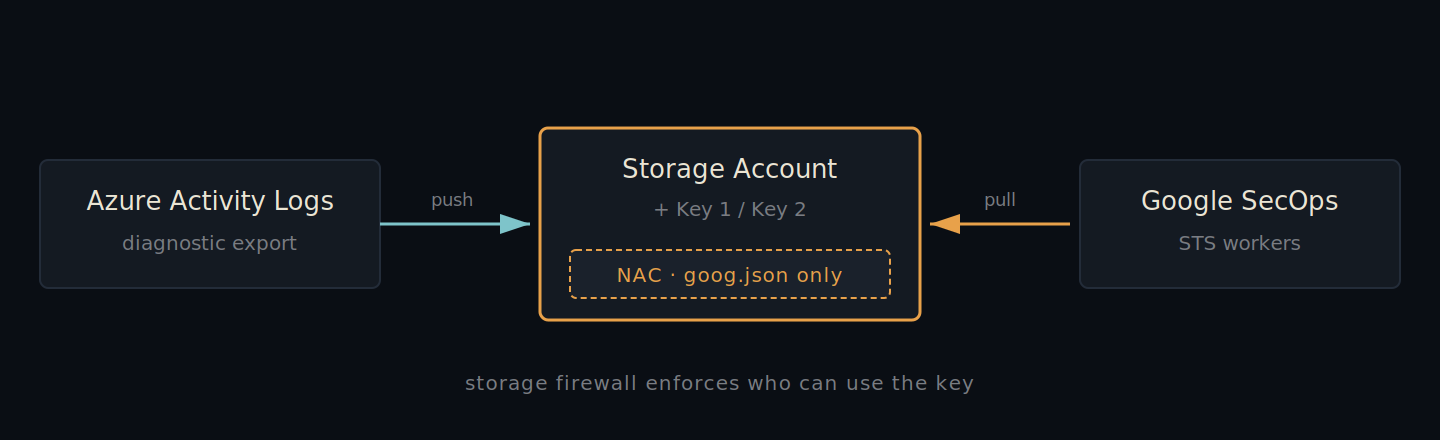
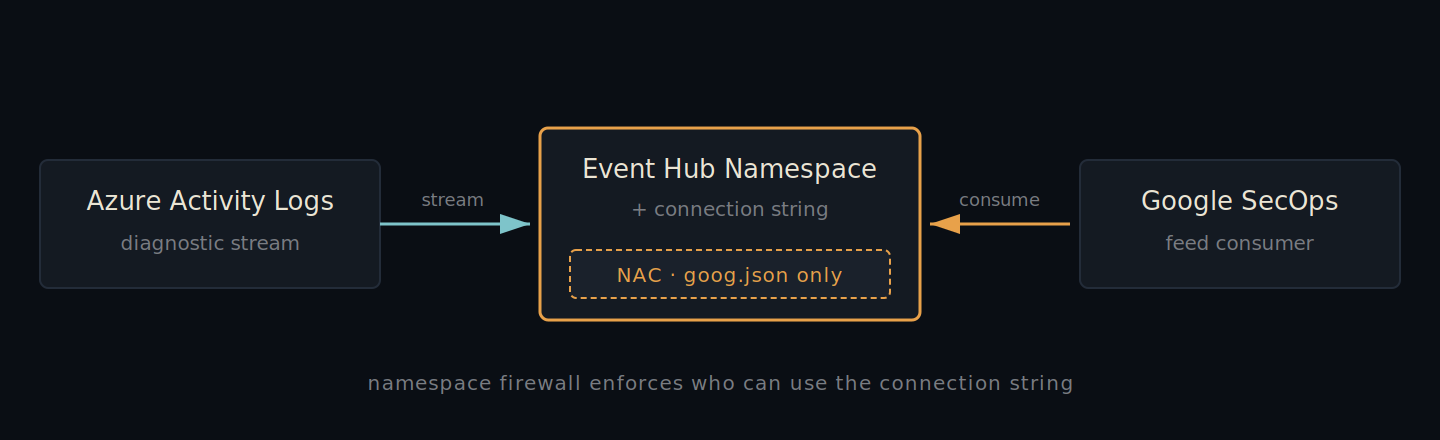
The Hardening Strategy: Two Layers, One IP List
Whichever path you’re on, the hardening is the same shape:
- Network Access Control (NAC) — turn on the Azure resource’s firewall so it refuses traffic from anywhere except an explicit allow-list.
- IP allow-listing of Google SecOps egress — populate that allow-list from Google’s authoritative ranges file (
goog.json) so SecOps’ connectors can still reach the resource.
From Google’s docs: “You must enable allowlisting and add the IP ranges for all log types that ingest data from third-party APIs.” This isn’t optional hardening you’re bolting on — it’s the configuration Google expects for any feed pulling from a third-party API.
The net effect: the credential becomes meaningless from any IP that isn’t Google’s. The credential still works — your feed keeps running — but the blast radius of a leak collapses to “an attacker with both the credential and a position inside Google’s address space,” which is a dramatically smaller set of people.
Step 1 — Get Google’s Current IP Ranges
Google publishes its egress ranges as a JSON file at www.gstatic.com/ipranges/goog.json. This is the source of truth — they update it as their fleet changes — so reach for it instead of pasting numbers from a blog post (including this one) into a firewall.
# Pull the v4 prefixes
curl -s https://www.gstatic.com/ipranges/goog.json \
  | jq -r '.prefixes[].ipv4Prefix // empty' \
  > goog-ipv4.txt

# And the v6 prefixes (use these where the Azure resource supports them)
curl -s https://www.gstatic.com/ipranges/goog.json \
  | jq -r '.prefixes[].ipv6Prefix // empty' \
  > goog-ipv6.txt

wc -l goog-*.txt
head -3 goog-ipv4.txt
On scope. goog.json is broader than the SecOps-specific list you’ll see in the feeds UI. It’s also the list Google’s own docs explicitly point operators to. The UI list is tighter but needs more frequent refresh, and tighter lists are exactly the kind of thing that silently break things at 3am when Google rolls out new capacity.
You can also retrieve the IPs from the SecOps UI (SIEM Settings → Feeds → Add New Feed; the dialog displays them; cancel out without saving) or programmatically via the Feed Management API’s feedSourceTypeSchemas endpoint.
Path A — Hardening The Storage Account
If your feed pulls blobs out of Azure Storage, the storage account is the credential surface. Lock it down here.
Portal walkthrough
- Azure Portal → Storage accounts → open the account backing the feed.
- Under Security + networking, choose Networking.
- On Firewalls and virtual networks, set Public network access to Enabled from selected virtual networks and IP addresses.
- Leave Allow Azure services on the trusted services list to access this storage account checked.
- Under Firewall → Address range, click + Add IP range and paste every CIDR from
goog-ipv4.txt(and v6 where applicable). - Save.
Or do it from the shell
Past about ten ranges, the portal is genuinely tedious. The CLI version applies everything in one go:
RG="<YOUR_RESOURCE_GROUP>"
SA="<YOUR_STORAGE_ACCOUNT>"

# Switch the firewall to deny-by-default
az storage account update \
  --resource-group "$RG" --name "$SA" \
  --default-action Deny --bypass AzureServices

# Pull goog.json, extract IPv4 prefixes, add each as a firewall rule
curl -s https://www.gstatic.com/ipranges/goog.json \
  | jq -r '.prefixes[].ipv4Prefix // empty' \
  | while read -r cidr; do
      az storage account network-rule add \
        --resource-group "$RG" --account-name "$SA" \
        --ip-address "$cidr" >/dev/null
    done

# Verify
az storage account network-rule list \
  --resource-group "$RG" --account-name "$SA" \
  --query '{default:defaultAction, rules:length(ipRules)}' -o table
Verify the feed still works
In SecOps, open the feed and watch Investigation → Raw Logs for fresh events. In Azure, open the storage account → Monitoring → Insights → Failures — there should be no 403 AuthorizationFailure entries from STS-source IPs. If logs stop arriving, the first thing to check is whether Allow Azure services on the trusted services list is still ticked.
Path B — Hardening The Event Hub Namespace
If your feed consumes events directly from an Event Hub, the namespace is the credential surface. The pattern is identical; the resource and the CLI are not.
Tier requirement. The Event Hub Namespace must be on Standard, Premium, or Dedicated. Basic tier does not support IP firewall rules. If you’re on Basic you’ll need to upgrade before any of this works.
Hard limit — 128 rules. Event Hubs caps IP firewall rules at 128 per namespace, across every tier. goog.json currently publishes around 110 prefixes (≈95 IPv4 + 15 IPv6), so you have headroom — but not much. If Google’s list crosses 128 you’ll need to either request a limit increase from Azure Support, narrow the allow-list to just the SecOps STS subset (tighter, needs more frequent refresh), or move to a Private Endpoint topology. Storage Accounts cap at 200 rules, which is the wider margin.
Portal walkthrough
- Azure Portal → Event Hubs → open the namespace backing the feed.
- Under Settings, choose Networking.
- On the Public access tab, set Public network access to Selected networks.
- Tick Allow trusted Microsoft services to bypass this firewall (so Diagnostic Settings emitters can still write into the namespace).
- Under Firewall, click + Add IP ranges and paste every prefix from
goog.json. - Save.
Or do it from the shell (single call)
Event Hubs’ CLI surface takes the whole rule set in one call — convenient when you have ~100 prefixes to push at once:
RG="<YOUR_RESOURCE_GROUP>"
NS="<YOUR_EH_NAMESPACE>"

# Build a JSON array of allow rules straight from goog.json
IP_RULES=$(curl -s https://www.gstatic.com/ipranges/goog.json \
  | jq -c '[.prefixes[]
           | (.ipv4Prefix // .ipv6Prefix)
           | select(. != null)
           | {ipMask: ., action: "Allow"}]')

az eventhubs namespace network-rule-set update \
  --resource-group "$RG" --namespace-name "$NS" \
  --default-action Deny \
  --public-network-access Enabled \
  --enable-trusted-service-access true \
  --ip-rules "$IP_RULES"

# Confirm
az eventhubs namespace network-rule-set show \
  --resource-group "$RG" --namespace-name "$NS" \
  --query '{default:defaultAction, trusted:trustedServiceAccessEnabled, rules:length(ipRules)}' -o table
The PowerShell variant (Azure Cloud Shell)
If you’re working from PowerShell mode in Cloud Shell, the same idea — fetch goog.json live, build the rule list, push in one update — looks like this:
$resourceGroup = "<YOUR_RESOURCE_GROUP>"
$namespace     = "<YOUR_EH_NAMESPACE>"

Write-Host "Fetching latest goog.json..." -ForegroundColor Cyan
$goog = Invoke-RestMethod -Uri "https://www.gstatic.com/ipranges/goog.json"

# Merge IPv4 + IPv6 prefixes into a single Allow rule list
$rules = foreach ($p in $goog.prefixes) {
    if ($p.ipv4Prefix) { @{ ipMask = $p.ipv4Prefix; action = "Allow" } }
    if ($p.ipv6Prefix) { @{ ipMask = $p.ipv6Prefix; action = "Allow" } }
}
$ipRulesJson = $rules | ConvertTo-Json -Compress

Write-Host "Applying $($rules.Count) rules to $namespace..." -ForegroundColor Cyan

az eventhubs namespace network-rule-set update `
    --resource-group $resourceGroup `
    --namespace-name $namespace `
    --default-action Deny `
    --public-network-access Enabled `
    --enable-trusted-service-access true `
    --ip-rules $ipRulesJson

Write-Host "Done." -ForegroundColor Green

az eventhubs namespace network-rule-set show `
    --resource-group $resourceGroup `
    --namespace-name $namespace `
    --query '{defaultAction:defaultAction, totalRules:length(ipRules)}' `
    --output table
Verify the feed still works
Open the namespace → Monitoring → Metrics and watch Outgoing Messages — that’s SecOps consuming. Check the Activity log for any 401 Unauthorized or 403 Forbidden from STS-source IPs; there should be none. In SecOps, the same UDM query you’d run for Path A applies:
metadata.log_type = "AZURE_ACTIVITY"
metadata.ingested_timestamp.seconds > <recent epoch>
When You Have Both Resources In The Path
The Microsoft Defender for Cloud and Microsoft Sentinel feed patterns route through both — Diagnostic Settings → Event Hub → Event Hub Capture → Blob Storage → SecOps STS. In that setup neither resource is sufficient on its own:
- If you only harden the storage account, the Event Hub connection string is still a usable internet-exposed credential.
- If you only harden the namespace, the storage account key is still a usable internet-exposed credential.
Apply the Storage steps to the storage account and the Event Hub steps to the namespace. Order doesn’t matter — there’s no traffic between SecOps and the Event Hub at runtime in this pattern, only ingestion-side traffic from Azure Activity to the Event Hub and then capture-internal traffic from the Event Hub to the blob.
Trusted services. Event Hub Capture writes into Blob Storage via the storage trusted-services bypass, which is why Allow Azure services on the trusted services list needs to stay ticked on the storage side. Without it, your own Event Hub Capture jobs will start failing the moment the storage firewall flips on.
Companion Controls Worth Doing
Network restriction blunts the impact of a credential leak; it doesn’t eliminate every risk. The list below is the second pass — apply in addition to NAC, not instead of it.
- Rotate the credential on a schedule. Quarterly, and after any departure with access. Use the Primary / Secondary pattern (Event Hubs has this natively per Shared Access Policy; storage accounts have
Key 1/Key 2). Update SecOps with the new value after each rotation. - Least-privilege the credential itself. For Event Hubs, never hand out
RootManageSharedAccessKey. Create a per-feed policy with Listen-only rights scoped to a single Event Hub. For storage accounts, prefer SAS tokens scoped to a single container with read+list if the feed source supports it. - Enforce TLS 1.2 minimum. Both resources have this in their Configuration blade. Default on new resources but not retroactively, so check.
- Disable shared-key auth where Entra ID works. Storage:
allowSharedKeyAccess = false. Event Hubs:disableLocalAuth = true. Only flip these once the feed has been migrated to Managed Identity / Entra ID auth, or you’ll cut your own ingestion off. - Diagnostic Settings on the resource itself. Stream the storage account’s or namespace’s own management-plane logs to a separate destination. Any change to the network rule set — including the rule set being removed — is then itself a logged event you can alert on.
- Shrink the blast radius of a successful read. Blob lifecycle policy: delete blobs older than the SecOps ingestion lag (e.g., 7 days). Event Hub retention: drop to the minimum that satisfies your operational tolerance. Either way, even an authenticated read returns minimal data.
- Don’t add ranges outside
goog.json. It’s tempting, during an outage, to “just let one more thing in for a minute.” Don’t. Add an exception, document it, expire it. Drift here is how locked-down resources end up open-to-the-world again over six months.
Keeping It That Way
Google updates goog.json over time as their fleet changes. Plan for it explicitly.
Drift detection
The useful question isn’t “did goog.json change since I last looked?” — that needs a stale snapshot file you have to maintain across runs. The question worth answering is “is the firewall currently in sync with what goog.json says today?” Compare directly.
The version below is meant to be saved as a script and called from cron, CI, or a monitoring agent — so it returns honest exit codes (0 = in sync, 1 = drift, 2 = the script itself can’t tell):
#!/usr/bin/env bash
#
# Check whether an Event Hub Namespace firewall is in sync with goog.json.
# Exit:  0 = in sync · 1 = drift detected · 2 = script error
# Requires: bash, az (logged in), curl, jq

set -euo pipefail

RG="<YOUR_RESOURCE_GROUP>"
NS="<YOUR_EH_NAMESPACE>"

# --- Dependency check ---
for cmd in az curl jq; do
  command -v "$cmd" >/dev/null || { echo "ERR · missing $cmd" >&2; exit 2; }
done

# --- Auth check ---
az account show >/dev/null 2>&1 || { echo "ERR · run 'az login' first" >&2; exit 2; }

# --- What's currently applied on the namespace ---
APPLIED=$(az eventhubs namespace network-rule-set show \
  --resource-group "$RG" --namespace-name "$NS" \
  --query 'ipRules[].ipMask' -o tsv | sort -u)

# --- What goog.json says should be there ---
DESIRED=$(curl -fsSL https://www.gstatic.com/ipranges/goog.json \
  | jq -r '.prefixes[] | (.ipv4Prefix // .ipv6Prefix) | select(. != null)' \
  | sort -u)

# --- Safety floor — refuse to compare against a suspiciously small list ---
DESIRED_COUNT=$(echo "$DESIRED" | grep -c .)
if [ "$DESIRED_COUNT" -lt 50 ]; then
  echo "ERR · goog.json returned only $DESIRED_COUNT prefixes — refusing to trust" >&2
  exit 2
fi

# --- Compare ---
if diff <(echo "$APPLIED") <(echo "$DESIRED") >/dev/null; then
  echo "IN-SYNC · $DESIRED_COUNT rules"
  exit 0
else
  APPLIED_COUNT=$(echo "$APPLIED" | grep -c . || true)
  echo "DRIFT · applied=$APPLIED_COUNT desired=$DESIRED_COUNT"
  echo "── diff (< applied, > goog.json) ──"
  diff <(echo "$APPLIED") <(echo "$DESIRED") || true
  exit 1
fi
A few of those lines are doing more than they look:
set -euo pipefailmakes the script abort on the first error instead of silently continuing.curl -fsSL— the-fmakes curl exit non-zero on HTTP errors (the naive version silently swallows a 503 from gstatic and ends up comparing an empty desired set, which would scream “drift” when really the network just blipped).grep -c .rather thanwc -lfor counting, becausewc -lreturns 1 on an empty string, which is wrong.
For a storage account the same shape applies — swap the az eventhubs … line for az storage account network-rule list --account-name "$SA" --resource-group "$RG" --query 'ipRules[].ipAddressOrRange' -o tsv.
The operational checklist
- Cadence. Monthly refresh, more often if you have automation. Wire it into the same job that rotates other allow-lists you maintain.
- Ownership. A named team — SecOps engineering or CloudSec — and an entry in their runbook. Without an owner, this drifts.
- Alarming. Alert if the firewall’s default action ever flips back to
Allow, or if Public network access changes to All networks. This is the silent-regression case: someone debugging an issue temporarily opens the firewall, gets paged for something else, and forgets to close it. - Audit. During quarterly access reviews, confirm: firewall still deny-by-default, no rules outside
goog.json, credentials rotated within policy, no Listen-only workload running withRootManageSharedAccessKey.
Making The Firewall Self-Maintaining
Everything above was the human-shaped version. Doing it by hand for a year goes one of two ways: someone keeps refreshing on the first of every month forever, or someone forgets, and six months later goog.json has drifted, your feed is dropping events, and you’re discovering the alert path you didn’t quite finish setting up. Better to write the job once.
What the job actually is
Strip the moving parts away and the loop is four steps:
- Pull the current
goog.json. - Project it to the rule shape your target resource expects.
- Compare against the rules currently applied on the resource.
- If they differ → apply. If they match → log “in sync” and exit.
The fourth step matters more than it looks. An idempotent reconciler that does nothing 95% of the time is dramatically easier to operate than a script that re-applies the same rules every day and clutters audit logs with no-op changes — and it makes a real change stand out instead of getting lost in noise.
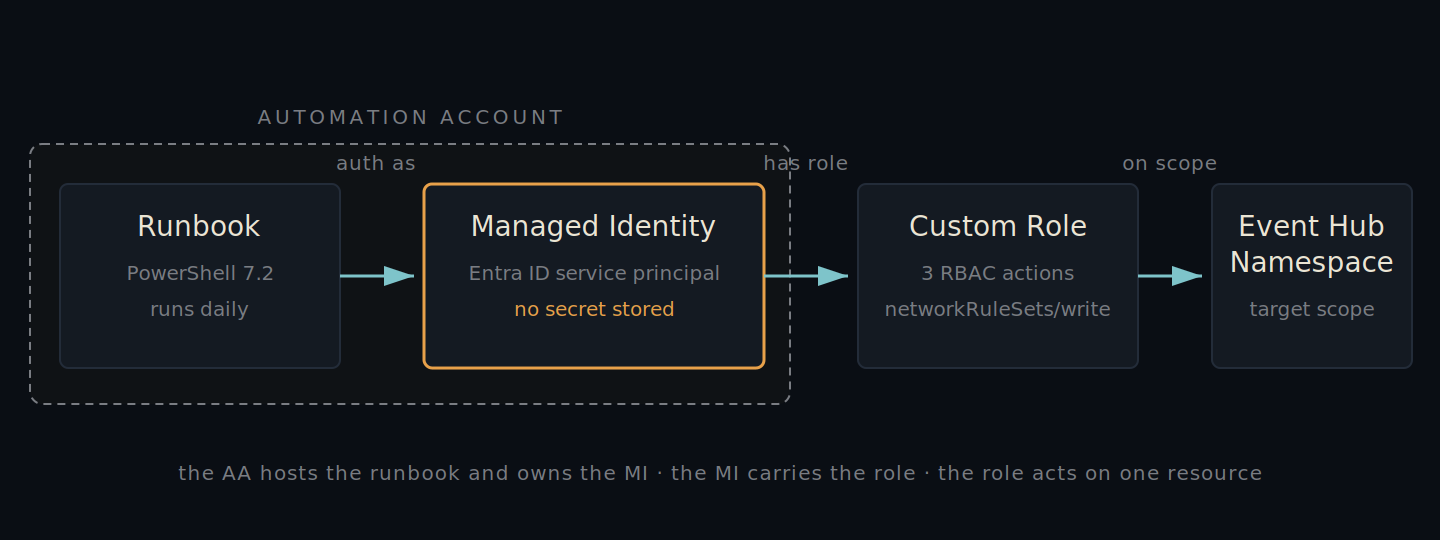
The auth chain
Before the commands, the chain of what authenticates as what is worth saying out loud, because it confuses people the first time they wire it up:
- The runbook runs inside Azure Automation.
- When it calls
Connect-AzAccount -Identity, it authenticates as the Automation Account’s Managed Identity — a service principal Entra ID provisions automatically when system-assigned MI is turned on. - That service principal needs RBAC permission to read and update the network rule set on the target Event Hub Namespace.
- You grant it that permission by assigning a role at the resource scope.
Licensing myth check. Custom Azure RBAC roles — the kind we’re defining here, for permissions on Azure resources like Event Hubs and Storage — are free in every subscription. They don’t require Entra ID P1 or P2. The licensing confusion comes from custom Entra ID directory roles (used for managing the directory itself: app registrations, group memberships, etc.), which do require P1+. Different feature, same word.
A Managed Identity has no networking. The MI is not a compute resource — no IP, no VNet, no firewall. It’s a service principal in Entra ID. The runbook calls Set-AzEventHubNetworkRuleSet, which is an ARM management-plane call routed through management.azure.com — not the Event Hub’s data plane (*.servicebus.windows.net). The management endpoint is universally reachable from Azure Automation’s sandbox; it isn’t subject to the Event Hub firewall you just installed. The reconciler keeps working even though the firewall blocks the public internet from reaching the namespace’s data plane.
No stored secrets. Daily cadence. One resource of scope. Idempotent. Alerts on failure, notifies on change.
Step-by-step setup
The next eight steps walk through everything in order. Each builds on the previous one — do them top to bottom. By the end you’ll have a daily reconciler running.
Step 1 — Create the Automation Account. In the Azure Portal, search for Automation Account and click Create.
- Name it (e.g.
auto-eventhub-nac). - Match the Resource group and Region to your Event Hub Namespace.
- On the Advanced tab, turn System-assigned Managed Identity On.
- On the Networking tab, leave Connectivity at Public access.
Click Create.
Public vs private — for this reconciler, public is fine. The runbook only makes outbound calls to management.azure.com (ARM) and gstatic.com (goog.json) — both public endpoints. “Public network access” doesn’t mean “anyone runs jobs,” it means the management endpoint is reachable; you still need to be in the right Entra ID tenant with the right RBAC to do anything. Go private only if your org enforces “no public endpoints” via Azure Policy, or you already operate Hybrid Worker infrastructure on a VNet.
Once the Automation Account exists, grab the Managed Identity’s principal ID — you’ll use it in Step 3. From the portal: Automation Account → Identity → System assigned → copy the Object (principal) ID. From the CLI:
AUTOMATION_RG="<AUTOMATION_ACCOUNT_RG>"
AUTOMATION_NAME="<AUTOMATION_ACCOUNT_NAME>"

MI_PRINCIPAL_ID=$(az resource show \
  --resource-group "$AUTOMATION_RG" --name "$AUTOMATION_NAME" \
  --resource-type "Microsoft.Automation/automationAccounts" \
  --query 'identity.principalId' -o tsv)

echo "Principal ID: $MI_PRINCIPAL_ID"
Step 2 — Define the custom role. The role grants the Managed Identity exactly the permissions the reconciler needs and nothing else — read and write the network rule set on the target namespace. Save the JSON below as eventhub-nac-editor.json, editing AssignableScopes for your real subscription, RG, and namespace:
{
  "Name": "Event Hub Network Rule Editor",
  "Description": "Read and update the network rule set on one Event Hub Namespace.",
  "Actions": [
    "Microsoft.EventHub/namespaces/read",
    "Microsoft.EventHub/namespaces/networkRuleSets/read",
    "Microsoft.EventHub/namespaces/networkRuleSets/write"
  ],
  "NotActions": [],
  "DataActions": [],
  "AssignableScopes": [
    "/subscriptions/<SUB_ID>/resourceGroups/<RG>/providers/Microsoft.EventHub/namespaces/<NS>"
  ]
}
Create the role definition (you need Microsoft.Authorization/roleDefinitions/write at the assignable-scope level — typically Owner or User Access Administrator):
az role definition create --role-definition ./eventhub-nac-editor.json
Portal alternative: Subscription → Access control (IAM) → Roles → + Create → Add custom role → Start from JSON → upload the file → review → create.
Storage Account equivalent. If your feed path uses a Storage Account instead of (or in addition to) an Event Hub, the role JSON is similar but rougher — there’s no dedicated networkRuleSets/write action on storage, so network changes go through the broader storageAccounts/write, which can also rotate keys. Subtract the dangerous capabilities via NotActions: storageAccounts/delete, listKeys/action, regenerateKey/action, listAccountSas/action, and listServiceSas/action.
Step 3 — Assign the role to the Managed Identity. Bind the role from Step 2 to the Managed Identity from Step 1, scoped to the target Event Hub Namespace — not the resource group, not the subscription:
# From Step 1 — paste the principal ID you captured earlier
MI_PRINCIPAL_ID="<principal-id-from-step-1>"

SCOPE="/subscriptions/<SUB_ID>/resourceGroups/<RG>/providers/Microsoft.EventHub/namespaces/<NS>"

# Assign the role at the namespace scope
az role assignment create \
  --assignee "$MI_PRINCIPAL_ID" \
  --role "Event Hub Network Rule Editor" \
  --scope "$SCOPE"

# Verify the assignment
az role assignment list \
  --assignee "$MI_PRINCIPAL_ID" --scope "$SCOPE" \
  --query '[].{role:roleDefinitionName, scope:scope}' -o table
If your org forbids custom roles. Some organisations restrict custom-role creation through Azure Policy. If you can’t use a custom role, the OOTB fallback is Contributor — scoped to the single target resource, never higher. For an Event Hub Namespace that’s Contributor at namespace scope; for a Storage Account it’s Storage Account Contributor at account scope (which adds listKeys — mitigate with post-reconciler key rotation plus diagnostic logging that alerts on any listKeys call). Do not reach for Azure Event Hubs Data Owner or any data-plane role: they grant Send/Listen/Manage on the data plane, which is the credential surface we’re trying to protect.
Step 4 — Create the automation variables. Automation Account → Variables → Add a variable. Create four:
| Name | Type | Value | Encrypted |
|---|---|---|---|
ResourceGroup |
String | your RG name | No |
NamespaceName |
String | your Event Hub Namespace name | No |
MinRuleFloor |
String | 50 (lower bound; runbook refuses below this) |
No |
MaxRuleCeiling |
String | 128 (the Azure cap for Event Hubs) |
No |
Step 5 — Import the Az modules (if not already there). Azure Automation provisions every new Automation Account with a small set of modules preinstalled. Check what’s already there first — in the Automation Account, open Modules. If Az.Accounts (5.0+) and Az.EventHub (4.0+) are already present, skip to Step 6. Otherwise go to Modules → Browse gallery and import Az.Accounts first (required by Connect-AzAccount), then Az.EventHub (provides Get-AzEventHubNetworkRuleSet, Set-AzEventHubNetworkRuleSet, and New-AzEventHubIPRuleConfig), which depends on it.
Step 6 — Create and schedule the runbook. Automation Account → Runbooks → Create a runbook. Name it Reconcile-EventHubNAC, type PowerShell, runtime version 7.2. Paste this script, then Save and Publish. On each run it enforces two things on the namespace’s network rule set — the IP rules match goog.json, and “Allow trusted Microsoft services to bypass this firewall” stays enabled — and reconciles whichever has drifted:
<#
.SYNOPSIS  Reconcile Event Hub Namespace NAC against goog.json.
.NOTES     Runs under the Automation Account's Managed Identity.
           Required automation variables:
             - ResourceGroup
             - NamespaceName
             - MinRuleFloor    (lower bound; e.g. 50)
             - MaxRuleCeiling  (Azure cap; 128 for Event Hubs)
#>

$ErrorActionPreference = "Stop"

# 1. Auth via Managed Identity (no secrets stored)
Connect-AzAccount -Identity | Out-Null

$rg      = Get-AutomationVariable -Name "ResourceGroup"
$ns      = Get-AutomationVariable -Name "NamespaceName"
$floor   = [int](Get-AutomationVariable -Name "MinRuleFloor")
$ceiling = [int](Get-AutomationVariable -Name "MaxRuleCeiling")

# 2. Pull goog.json
Write-Output "Fetching goog.json..."
$goog = Invoke-RestMethod -Uri "https://www.gstatic.com/ipranges/goog.json"

# Audit trail: which version of Google's list did we apply?
# syncToken and creationTime are public version IDs from goog.json itself — safe to log.
Write-Output "goog.json syncToken=$($goog.syncToken) creationTime=$($goog.creationTime)"

$desired = @()
$desired += $goog.prefixes | Where-Object { $_.ipv4Prefix } | ForEach-Object { $_.ipv4Prefix }
$desired += $goog.prefixes | Where-Object { $_.ipv6Prefix } | ForEach-Object { $_.ipv6Prefix }

# 3. SAFETY FLOOR — never apply a suspiciously small ruleset
if ($desired.Count -lt $floor) {
    throw "Refusing to apply: goog.json returned only $($desired.Count) prefixes (floor=$floor)."
}

# 4. AZURE CEILING — refuse to silently truncate
if ($desired.Count -gt $ceiling) {
    throw "Refusing to apply: goog.json has $($desired.Count) prefixes, exceeds Azure cap of $ceiling."
}

# 5. Compare against current applied state.
#    We enforce TWO things: the IP rule set matches goog.json, AND the
#    'Allow trusted Microsoft services to bypass this firewall' option is on.
$currentSet  = Get-AzEventHubNetworkRuleSet -ResourceGroupName $rg -NamespaceName $ns
$current     = $currentSet.IpRule | ForEach-Object { $_.IpMask } | Sort-Object
$want        = $desired | Sort-Object
$trustedSvc  = $currentSet.TrustedServiceAccessEnabled -eq $true
$rulesInSync = -not (Compare-Object $current $want)

if ($rulesInSync -and $trustedSvc) {
    Write-Output "IN-SYNC · $($want.Count) rules · trusted services: on"
    return
}

# Build a human-readable list of what drifted
$reasons = @()
if (-not $rulesInSync) { $reasons += "rules (current=$($current.Count) desired=$($want.Count))" }
if (-not $trustedSvc)  { $reasons += "trusted-services bypass disabled" }
Write-Output "DRIFT · $($reasons -join ' · ') · applying"

# 6. Apply — corrects IP rules and the trusted-services flag in one call
$ipRuleObjects = $desired | ForEach-Object {
    New-AzEventHubIPRuleConfig -IPMask $_ -Action "Allow"
}

Set-AzEventHubNetworkRuleSet `
    -ResourceGroupName $rg `
    -NamespaceName $ns `
    -DefaultAction "Deny" `
    -PublicNetworkAccess "Enabled" `
    -TrustedServiceAccessEnabled `
    -IPRule $ipRuleObjects | Out-Null

Write-Output "APPLIED · $($want.Count) rules · trusted services: on"
If you see New-AzEventHubIPRuleConfig is not recognized. That cmdlet ships in Az.EventHub. If the runbook fails with that error, the module either isn’t imported on this Automation Account or is at a version too old to have it. Go back to Step 5 and import (or update) Az.EventHub from the gallery — it depends on Az.Accounts, so import that first.
Now schedule it. Automation Account → Schedules → Add a schedule: frequency Day, interval 1, time 07:17 UTC (any odd-minute time works), time zone UTC. Then open the runbook → Schedules → Add a schedule → pick the one you just created. Why daily and not hourly: goog.json changes on the order of weeks. Why daily and not weekly: when ranges do shift, you want the catch inside a working day, not on the Monday after a long weekend.
Step 7 — Wire up alerts and a concurrency guard. A runbook that fails silently is barely better than no runbook.
- Add an alert so a failed job pages someone: Automation Account → Alerts → New alert rule, signal Total Jobs with dimension filter
Status = Failed, thresholdgreater than 0over a 5-minute window, routed to an action group. - Also add a notification (not page) on the
DRIFT · applyinglog line — a successful apply means Google’s ranges changed and humans should know.
To stop a manual trigger racing a scheduled job, add a concurrency guard near the top of the runbook:
# Add near the top of the runbook, after Connect-AzAccount
$aaRG   = Get-AutomationVariable -Name "AutomationAccountRG"
$aaName = Get-AutomationVariable -Name "AutomationAccountName"

$inFlight = Get-AzAutomationJob `
    -ResourceGroupName $aaRG `
    -AutomationAccountName $aaName `
    -RunbookName "Reconcile-EventHubNAC" `
    -Status "Running"

# This run counts itself, so >1 means a concurrent job exists
if ($inFlight.Count -gt 1) {
    Write-Output "SKIP · another instance is already running"
    return
}
If you add the guard, also add two more automation variables — AutomationAccountRG and AutomationAccountName — and grant the MI Microsoft.Automation/automationAccounts/jobs/read on its own Automation Account.
Step 8 — Test it. Open the runbook → Test pane → Start. On a healthy run you’ll see one of:
IN-SYNC · 110 rules · trusted services: on(the steady state),DRIFT · rules (current=108 desired=110) · applyingfollowed byAPPLIED · 110 rules · trusted services: on, orDRIFT · trusted-services bypass disabled · applyingif someone toggled the bypass off through the portal.
Confirm the syncToken line shows up early — your audit anchor for the run. To exercise the drift path, manually add a junk IP rule via the portal and re-run; the next run should detect drift and revert it. Remove the junk after testing.
Observability
Three things are worth logging, ranked by how urgently you need to know:
| Event | What it means | Where it goes |
|---|---|---|
FAILED |
Couldn’t pull goog.json, couldn’t talk to Azure, got rejected, or hit the safety floor. |
Page someone. |
DRIFT · applying |
A real change is being applied — usually Google rolled out new ranges, occasionally someone hand-edited the firewall. | Notify a channel. Humans should see it; nobody needs to wake up. |
IN-SYNC |
No-op. The expected outcome of ~95% of runs. | Log only. No notifications. |
The runbook’s output stream lands in the Automation Account’s job log — point a Log Analytics workspace at it and write alert rules on AzureDiagnostics where Category == "JobStreams" and the message matches FAILED or DRIFT.
Don’t lock yourself out — and don’t silently truncate
Two operational guardrails worth stating outright. Both are encoded as throws in the runbook above.
The floor — never apply an empty ruleset. The automation must never push defaultAction: Deny with zero (or near-zero) IP rules. If goog.json ever returns empty, truncated, or malformed JSON, the naive code path would set Deny + empty and lock the resource away from everyone — including the SecOps STS workers and the automation principal trying to fix it. That’s what the MinRuleFloor check is for. A skipped reconcile is recoverable; a self-bricked resource is a real outage.
The ceiling — never silently truncate. The mirror image of the floor. Event Hubs caps the firewall at 128 rules; goog.json sits around 110 today. If Google publishes a meaningful expansion and crosses 128, a “best effort” reconciler that quietly skips the overflow would partially allow some prefixes and silently deny the rest — your feed would start dropping a fraction of events, and the symptom (intermittent 403s) would be miserable to debug. Better: refuse the apply, fail the job, and page a human.
Bootstrap order. On first deployment, push at least one IP rule before flipping defaultAction to Deny. Azure rejects an update that would set Deny with an empty rule set (returns a 400 explaining the resource would become inaccessible). The reconciler above sidesteps this by always applying default-action and ip-rules in the same call.
When It Breaks And You Need It Open
If the hardening blocks legitimate traffic and you need to revert now:
- Azure Portal → resource → Networking → set Public network access back to All networks. Save.
- Open a ticket against yourself to investigate which range is missing. It’s almost always a new Google prefix that has rolled out since your last refresh.
- Re-pull
goog.jsonand re-apply. Do not leave the resource open as the steady state — open-to-the-internet for a feed resource is not an acceptable resting position.
Reality check. If you ever find yourself debating leaving the firewall off “for now,” put a calendar reminder on the resource. The half-life of “for now” is six months and counting.
Wrapping Up
That’s the whole pattern. A leaked storage key or connection string is no longer an internet-wide problem — it’s a Google-IP-space problem, which is a meaningfully better place to be. Pair it with credential rotation and least-privilege SAS policies and you’ve closed the main door, the secondary door, and locked the gate to the yard.
References
- Google SecOps — Use the Feed Management UI · IP Allowlisting
- Google SecOps — Collect Microsoft Azure Activity and Entra ID logs
- Google SecOps — Create an Azure Event Hub feed
- Google — Published IP ranges (goog.json)
- Microsoft — Configure Azure Storage firewalls and virtual networks
- Microsoft — Allow access to Azure Event Hubs from specific IP addresses
- Microsoft — Authenticate an application with Entra ID to access Event Hubs